Hindsight Replay · for Mac
Edit live before it goes live.
Live switching, broadcast delay, replay, recording and live timeline editing, on one desk. Built for Mac.
Switch and record continuously. Turn on the delay to keep Program safely behind Live, scrub what hasn't aired, remove mistakes, and send the clean result to your audience.
Version 0.6.13
The idea
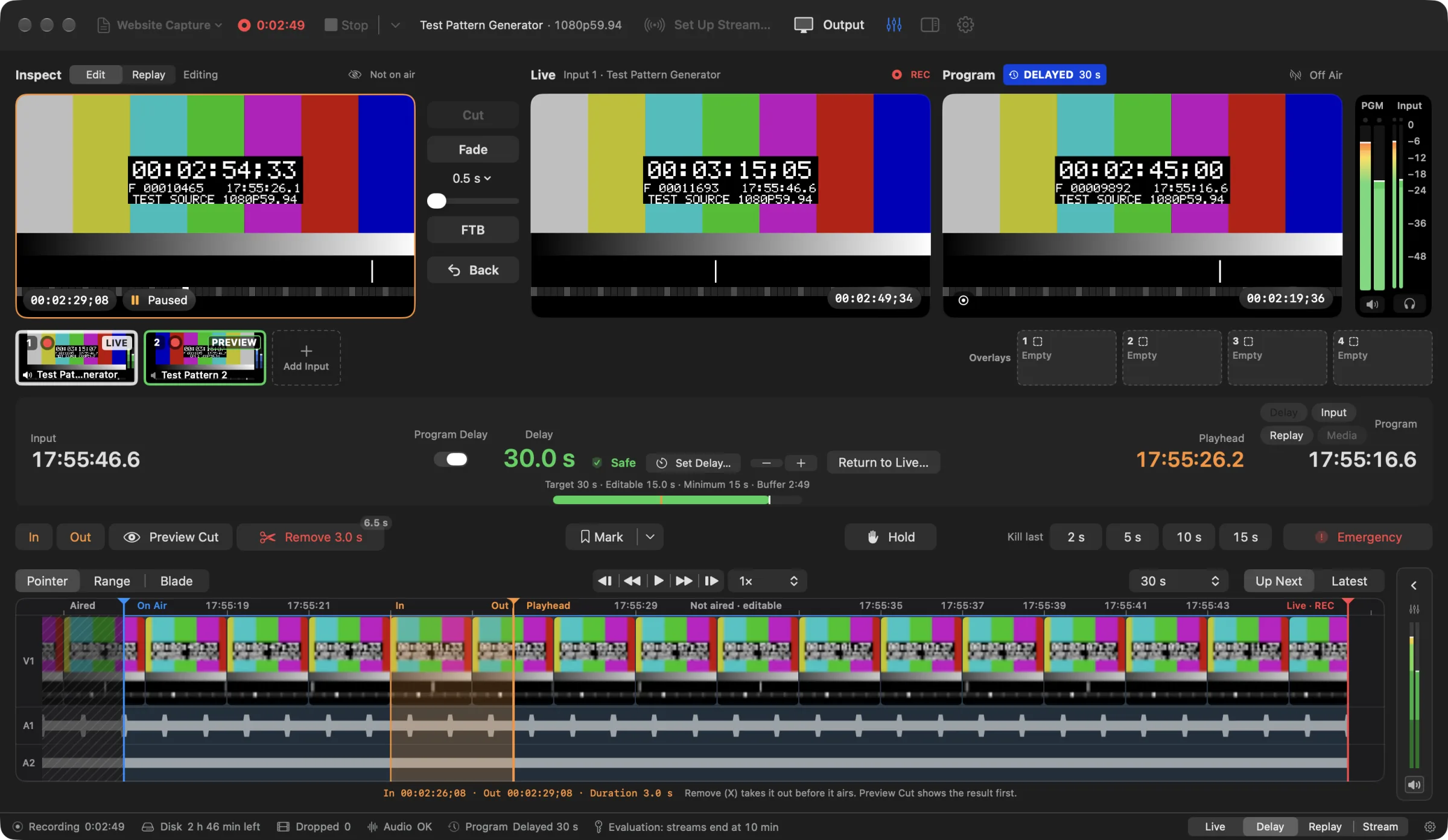
Give live a safety window.
- Live · REC
- What is happening right now: the newest recorded frame, at the right end of the timeline.
- Not aired · editable
- Recorded, not aired yet. The only part of the timeline you can edit.
- On Air
- What Program plays now, which is what viewers receive. It runs behind Live · REC by the delay you set, less anything you remove.
The delay is off until a show needs it. Turned on, it records 30 seconds and waits as Ready; Go To Program (⌘↩) starts Program that far behind Live. Program holds its last clean frame rather than come closer to Live than Minimum Delay, and Return to Live (⌥⌘L) brings Program back to the live input when the show no longer needs the delay.
How it works
See it. Fix it. Then air it.
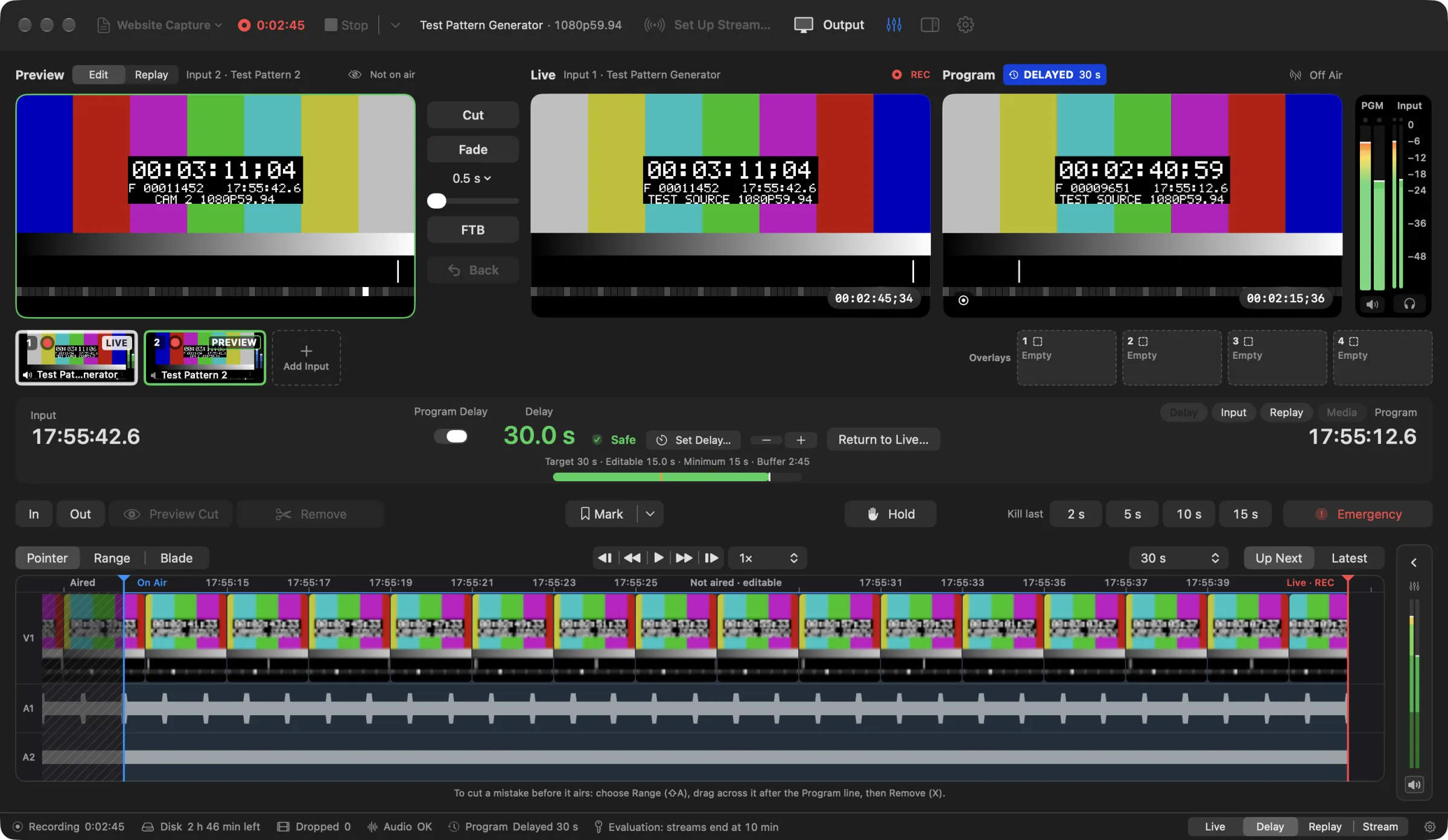
Turn on Program Delay and, once the delay has recorded, Go To Program (⌘↩) starts the show 30 seconds behind Live. Everything between On Air and Live · REC on the timeline has been recorded but has not aired yet.
 (opens the full-size screenshot)
Press E to edit. The left monitor becomes Inspect and follows the orange Playhead; it is never on air. Scrub ahead of On Air with the thumbnails and the waveforms while Program carries on.
 (opens the full-size screenshot)
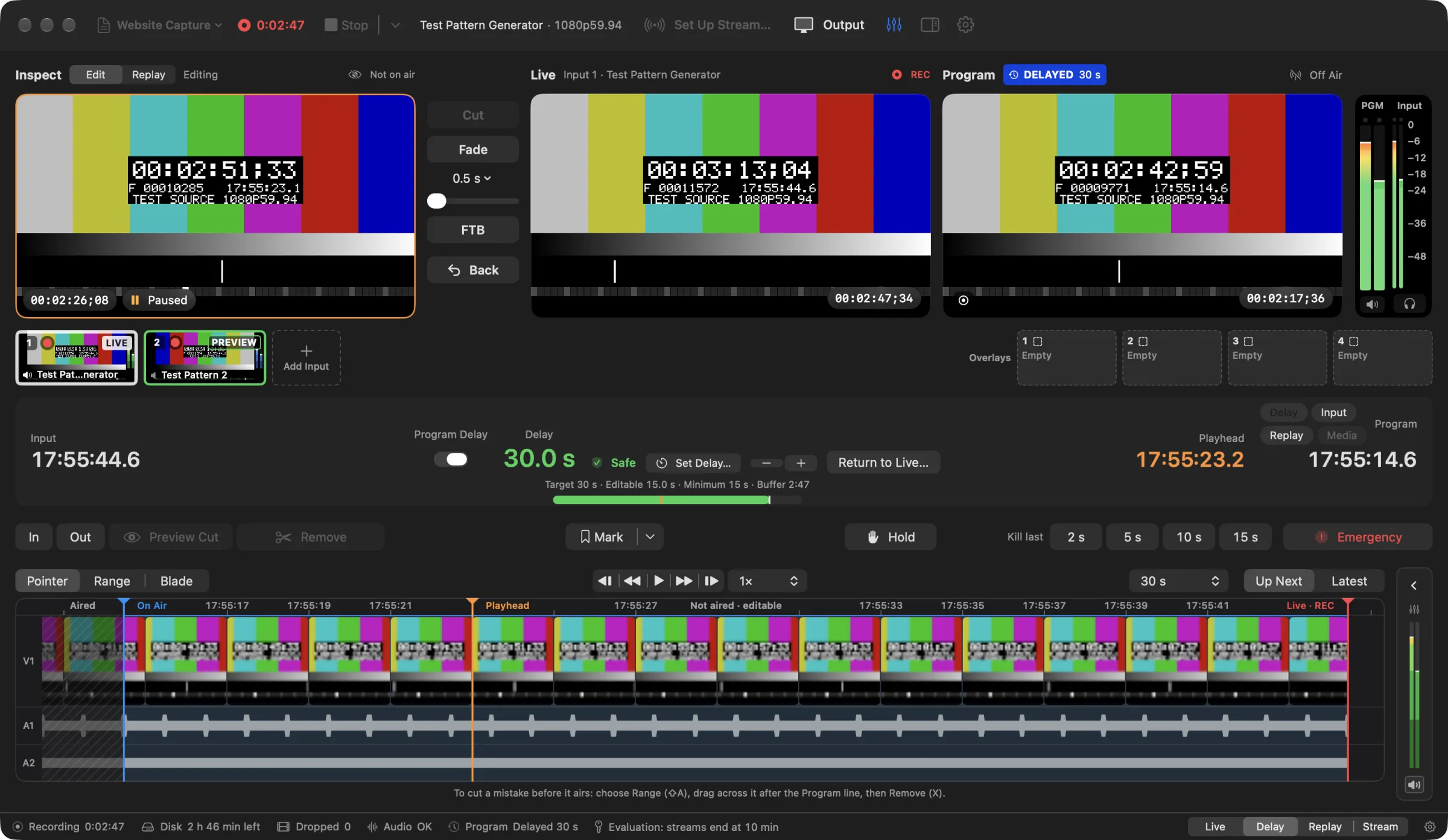
Set In and Out with I and O around the mistake. Remove (X) takes it out before it airs; Preview Cut plays the result first.
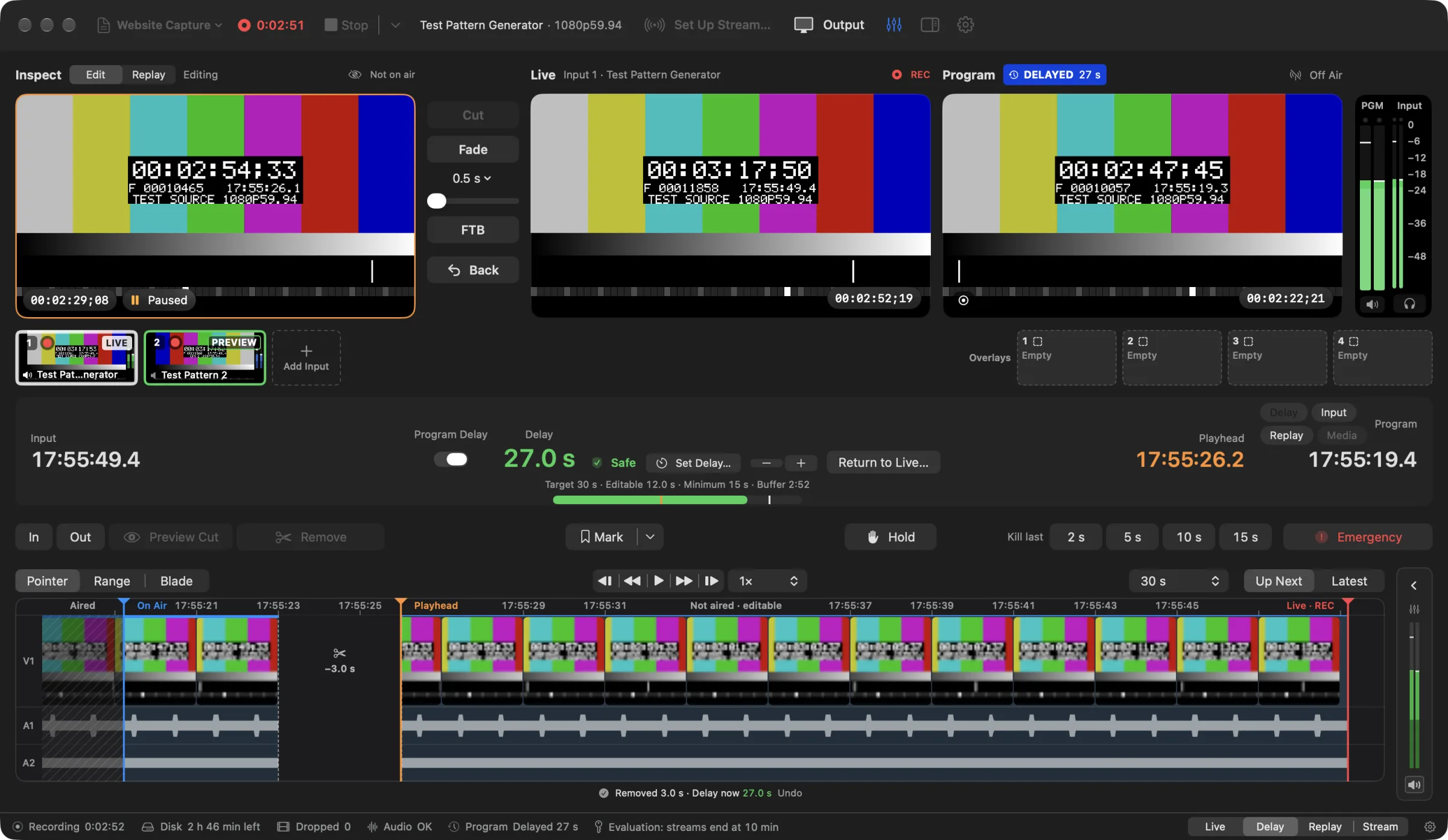
(opens the full-size screenshot)The section becomes a gap marked −3.0 s and the delay drops by its length, from 30.0 to 27.0 seconds. When Program reaches the cut it jumps over it, so the audience never sees it. Until then, Undo puts it back.
 (opens the full-size screenshot)
Program has passed the cut and runs 27.0 seconds behind. Remove only changes what airs: the full recording keeps the removed section for as long as the recording buffer holds, and Program.mov holds Program as it aired, without the cut.
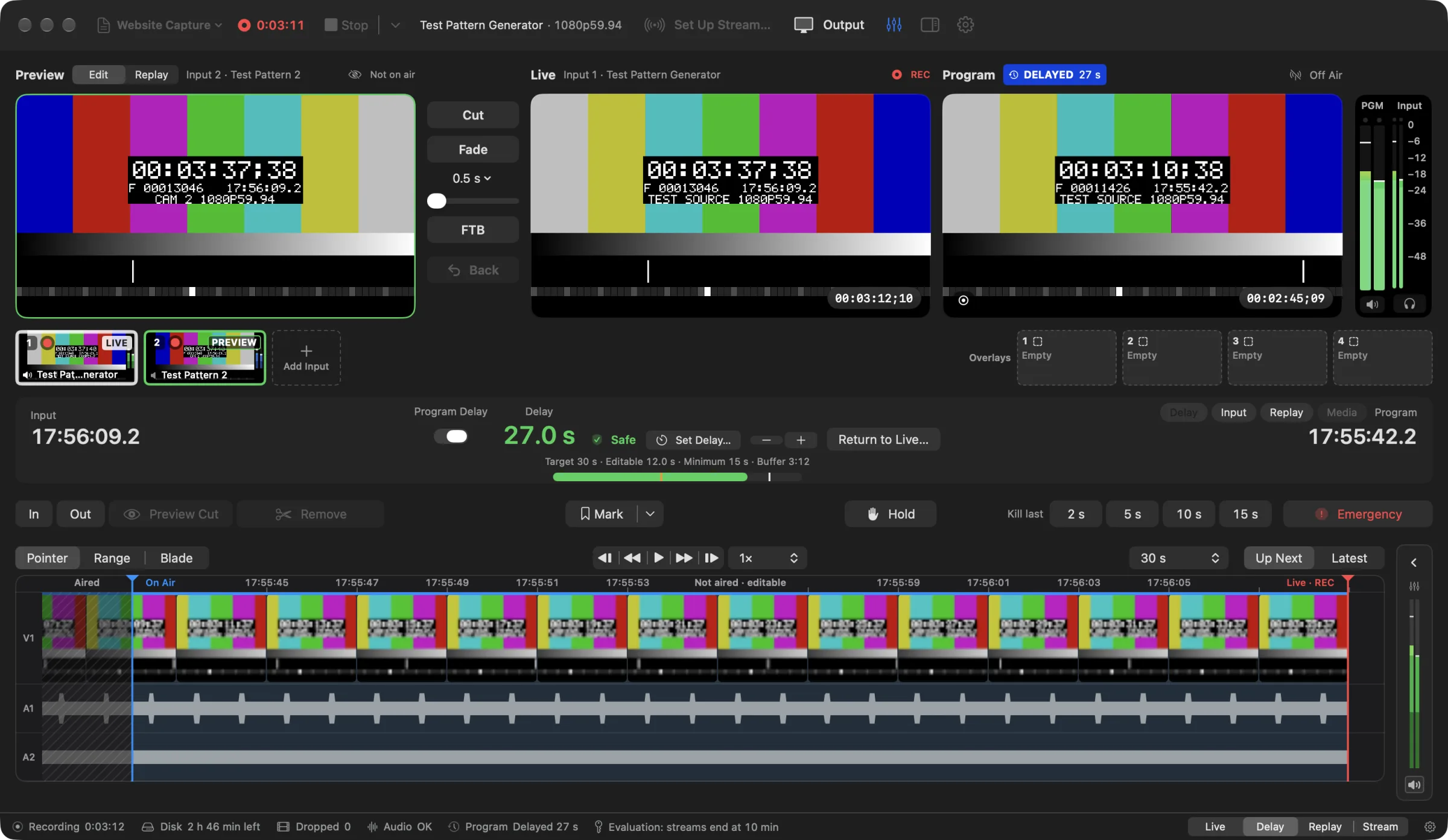 (opens the full-size screenshot)
The app
Preview. Live. Program.
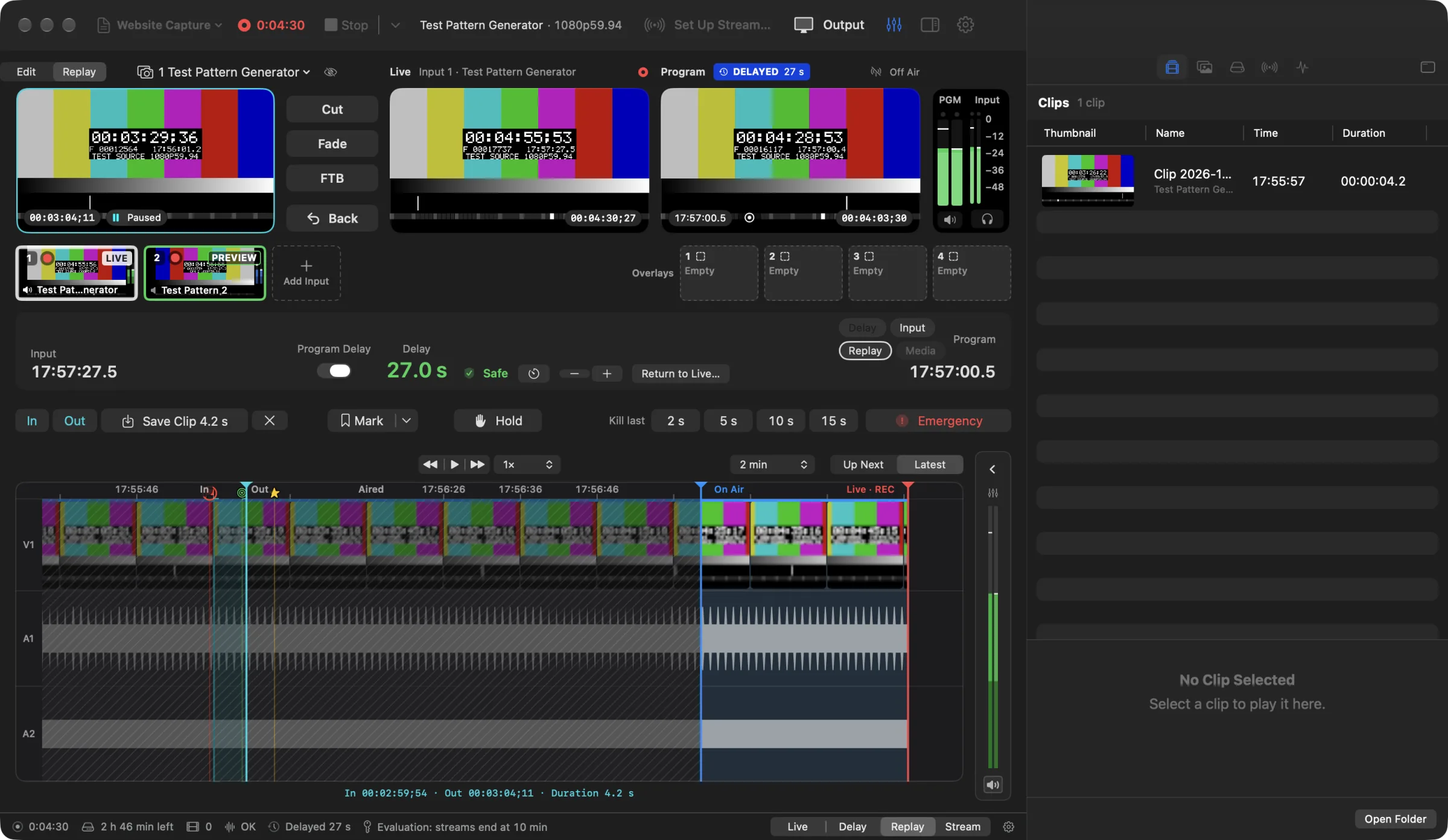
Preview, Live, Program
Preview, outlined in green, shows the next shot and is never on air. With the delay on, Live shows what you are switching and recording. Program shows exactly what viewers receive, and its banner says how: Delayed 30 s, Live, Held, Replay, Media or Black. While you edit or replay, the left monitor becomes Inspect.
Cut, Fade and Take
Cut (C) or Fade (F) sends Preview's input to Live. With the delay off, Live is Program; with it on, Live is recorded and reaches Program through the delay. Take (T) puts a replay or media on Program, and Back to Delay (⌘L) brings the delayed feed back. Esc never changes what is on air.
Nothing skips the delay by accident
A Take that would bypass the delay raises a take bar first. Press Return to take it; it cancels itself after eight seconds.
Safety controls that never move
With the delay on, Hold, Kill the last 2, 5, 10 or 15 seconds, and Emergency stay in the same place on the controls row, even in operator mode (⇧⌘O).
Feature overview
What it does.
One Desk
Preview and Program monitors (and Live, when the delay is on), the delay, the controls and one timeline in one native Mac window, in Light or Dark mode. Live, Delay, Replay and Stream workspaces (⌘1–⌘4) arrange it for one job.
Live Capture
SDI and HDMI through AJA U-TAP, Blackmagic DeckLink and UltraStudio, and AJA KONA, Io and Corvid cards (SD and HD; the Blackmagic devices and the AJA cards are not yet tested on hardware), USB capture devices, the Mac's camera and iPhone, NDI® sources on your network (with tally), and SRT from an encoder, a phone or another studio. Program can go out as an NDI source too.
Video Switcher
Up to eight inputs with live tiles, including Media clips. Cut, Fade, Dip, Wipe, Slide or Zoom, or mix by hand with the T-bar; an Audio Mixer, as in vMix, gives every input a fader, balance, Solo, mute, EQ, compressor, noise gate and delay, and buses A and B make separate mixes for other sound outputs. Four overlays put lower thirds, logos and titles over Program. With the delay off, Program is live, recording or not, and only changes when you say so: everything you add waits in Preview until you Cut, Fade or Take it, and a video starts playing as it goes to Program. Starting or stopping a recording never restarts an input. Fade to Black takes Program's picture and sound out together on every output, and brings them back.
Show Projects
Hindsight Replay opens on a clean slate. Save a show as a project, with its inputs, YouTube link, overlays, transitions, delay and stream destinations, and open it again with one click. After an unexpected quit, the show is kept as it was.
Full Recording
Continuous recording of the show, and of each input with Record for Replay ticked, on the drive and codec you choose (ProRes, or all-intra HEVC or H.264), with the time left shown as you record. It keeps the last 30 minutes by default; turn on Keep the whole show and nothing is deleted while the drive has room.
Program Recording
A frame-exact file of what the audience received, with continuous timing.
Broadcast Delay
When a show needs it, keep Program from 10 seconds to 30 minutes behind Live, or up to 2 hours with a custom delay. Record first, show a holding slide or video while the delay builds, and cut anything before it airs. Play a video mid-show and the delay waits, so nothing said is skipped. Change the delay on air and Program eases to it by speed, with the pitch kept; a raise of more than a minute freezes Program while the extra time records, and on air it asks first.
Live Timeline Editing
The Up Next timeline (⇧⌘N) shows everything not aired yet. Set In and Out, blade and remove, frame-accurate. Drag a cut's edge to trim it, or restore a cut Program has not passed; every edit has Undo. Press P to mark a problem at Live, then N to jump to it, or to a signal gap or sound at full level, before it airs.
Instant Replay
Jump back, shuttle from −4× to 8×, play or loop In to Out, step frames and mark moments while capture continues. Choose which inputs are recorded for replay, then replay any moment from any of them. With the delay off, the Replay tile goes on air through the switcher like any other input; with it on, Take (T) puts the replay on Program once you confirm with Return.
Take, Go To Program and Back to Delay
C cuts Preview to Live, F does the same with the chosen transition, and T takes what Preview shows, a Media clip from where you cued it. With the delay off, Live is Program. With the delay on, Live reaches Program through the delay: Program waits as Ready until Go To Program (⌘↩), ⌘L goes Back to Delay, a take that would skip the delay waits for Return, and Return to Live (⌥⌘L) brings Program back to the input without a jump.
Clip Creation
Set In and Out and save a frame-exact clip without re-encoding. Play, rename and export it from the Clips inspector.
YouTube Streaming
Stream Program to YouTube Live, any RTMP/RTMPS server or an SRT receiver (calling it, or waiting for it to call), to several at once, with hardware encoding, live bitrate and dropped-frame readouts, and automatic reconnect.
Media Pool
Add videos, stills, sound files, whole folders or YouTube videos, build playlists, click to cue in Preview and Take to air. Pre-show, holding and post-show playlists.
Hardware
Built for professional video workflows.
Blackmagic Design
- DeckLinkBest effort
- UltraStudioBest effort
DeckLink and UltraStudio inputs through Blackmagic Desktop Video. These devices have not yet been tested with Hindsight Replay.
AJA
- U-TAP SDISupported
- U-TAP HDMISupported
- KONA, Io, Corvid (SD and HD)Best effort
- UHD and 4K from AJA cardsNot in this release
U-TAP over USB, with no driver. KONA, Io and Corvid inputs through AJA Desktop Software: each SDI and HDMI input appears under AJA, in SD and HD with embedded sound. These cards have not yet been tested with Hindsight Replay.
Cameras and USB capture
- USB capture devices (UVC)Supported
- Mac cameraBest effort
- iPhone (Continuity Camera)Best effort
USB Video Class capture devices, the Mac's built-in camera and an iPhone as Continuity Camera, as an input or as one of up to eight switcher inputs.
Network streams
- HLS streamSupported
- YouTube live linkBest effort
- YouTube video, added to MediaBest effort
HLS (.m3u8) addresses and YouTube live links as an input, picture and sound, at the best quality the connection carries; YouTube videos can be added to Media. YouTube needs the free yt-dlp tool, which Hindsight Replay can install for you.
NDI®
- NDI sources as inputsSupported
- Program as an NDI sourceSupported
Any NDI source on your network as an input, with tally, and Program sent as an NDI source. NDI® is a registered trademark of Vizrt NDI AB; ndi.video.
SRT
- SRT input (H.264 with AAC)Supported
- Program to an SRT receiverSupported
- HEVC over SRTNot in this release
Picture and sound from an SRT sender (an encoder, a phone app, OBS or another studio) as an input, and Program sent to an SRT receiver. Hindsight Replay calls the other end or waits for it to call, with an optional AES passphrase.
Macs
- macOS 15 or laterSupported
- Apple siliconSupported
- Intel MacsUniversal build
Hardware H.264 encoding carries the stream, and ProRes recording uses the ProRes engine on Apple silicon chips that have one.
Compatibility is determined by the device and its driver. Hindsight Replay is not certified by or affiliated with Blackmagic Design or AJA. Blackmagic devices need Blackmagic Desktop Video installed; AJA KONA, Io and Corvid cards need AJA Desktop Software installed; AJA U-TAP needs no driver.
Download
Put hindsight in your live workflow.
Professional live replay and broadcast delay for Mac.
Free while in beta. Hindsight Replay will become a licensed product after the beta; pricing will be announced here first.
- Version
- 0.6.13 beta
- Released
- 2026-11-14
- macOS
- 15.0 or later
- Processor
- Universal · Apple silicon recommended
- Download
- 25.3 MB disk image
Signed and notarized; drag it to Applications. It updates itself between shows, never during capture or a stream. Without a license key, the current beta build ends a stream after 10 minutes. Recording, replay, delay and editing are not limited. Without capture hardware, the two built-in test patterns run every workflow, the switcher included.
What’s new in 0.6.13
- Fixed: Blackmagic DeckLink and UltraStudio inputs restarted themselves about thirty times a second on a 10-bit source recorded as 8-bit (the default; every SDI camera is a 10-bit source) and lost pictures. A 1080p60 source arrived at thirty pictures a second on a recording marked p60, and a delay took twice as long to build. Found and confirmed on an UltraStudio Recorder 3G.
- Fixed: a recording drive formatted exFAT (as most portable SSDs are when new) was read as having no free space, so nothing was recorded to it, while the drive list showed its real free space.
- Fixed: Program Delay was switched off every time the app opened. It now comes back the way you left it.
- Fixed: after Return to Live › Catch Up, turning Program Delay on again in the same recording played Program fast until the delay had run out. It now starts at normal speed with your Minimum Delay.
- Alerts, the delay's speed changes and Return to Live keep working while a menu is held open or a file panel (Add Media, Save, Open) is up. They used to wait until it closed.
- A license check can never end a stream. A show that went live licensed finishes whatever a later check says, and the twelve-hourly check no longer drops to Checking… while it waits for an answer.
- Fixed four ways bad input could quit the app: a malformed call to an SRT output that waits for its receiver, a malformed message from an RTMP server, a YouTube or HLS playlist with a frame rate or duration that is not a number, and an absurd number in Settings › Program Delay › Audio fade at cuts (now at most 250 ms).
- Fixed: Stop Recording and Quit could lose the last seconds of a recording (up to one segment: 4 seconds as set, 30 at the longest). The app did not wait for the last file to close, and opening the recording again deleted the file it found unfinished. Stop and Quit now wait for it, for the show and for each camera's own recording, and opening a recording never deletes anything: an unfinished file that plays is kept.
- Fixed: choosing a shorter Keep the last after Stop (in Settings, or in Select Input even when cancelled) deleted the older footage of the recording that had just finished. It now applies to the next recording; a recording in progress is still trimmed at once.
- Keep the whole show asks before it is turned off during a recording and says how much it will delete. It used to delete on the click. Turned on during a recording, it now covers each camera's own recording as well.
- Stop Recording, Quit, the Program Delay switch and updates now count Program going out of a hardware output, over NDI or to an extra stream destination as on air, exactly as the On Air badge does. Before, only the main stream and the Output Window counted, and they asked nothing. Stop Recording also says what viewers will really see: nothing changes with the delay off, a frozen frame with it on.
- Record, Stop Recording, a replay reaching live and a format change no longer change what is on Program. A holding or post-show video stays up when you press Record for the next show or when the recording stops, and an input you took to Program stays there. Only you move Program: Back (⌘L), Take, Cut and the Program buttons. Before, each of these events put Program back on its normal feed by itself.
- Fixed: after an Emergency Cut with the Black fallback, a new recording (a format change, or Switch Input) could leave every output black and silent with the button reading Emergency Cut again. The black now ends when the emergency does.
- A stream whose connection stalls without closing is found within about ten seconds and reconnected, with an alert. It used to read Live for minutes after the destination had ended it.
- Once a stream has been live, a destination that refuses the reconnection (usually a server still holding the earlier connection) no longer ends the stream after three tries. Hindsight Replay keeps trying, as it does when the network drops.
- If the video encoder for the stream or for the recording stops working, it is started again and an alert says so; if the replay decoder stops, a new one is made for the next picture. Before, the stream went on with sound and a frozen picture, the recording lamp stayed on with nothing being recorded, and nothing was said.
- Stream warnings that last more than five seconds (network unstable, dropping pictures, encoder overload, a sound problem, bitrate below target) now appear as alerts in every workspace, not only in Stream.
- Select Input no longer says AJA KONA and Io cards need an SDK that isn't built in. The NTV2 SDK has been built in since 0.6.10: with AJA Desktop Software installed, the SDI and HDMI inputs of KONA, Io and Corvid cards appear under AJA.
- Correction to the 0.6.10 notes: AJA T-TAP Pro is an output-only device (Thunderbolt to SDI and HDMI out) with no inputs, so it never appears as an input. AJA inputs come from KONA, Io and Corvid cards, and from U-TAP over USB.
FAQ
Questions, answered.
Need help?
Write to info@praptiyogi.app with your capture device and the log saved with Help › Export Diagnostics Log…; it already includes the app version, macOS and your Mac’s model. Press ? (or ⌘/) in the app for every keyboard shortcut.
What is Hindsight Replay?
Hindsight Replay is a native Mac application for live video capture and switching, continuous recording, instant replay, broadcast delay and live timeline editing. Program follows your cuts straight away; turn on Program Delay and Program plays a set time behind Live, so an operator can review and remove mistakes before they reach the audience. It streams Program to YouTube Live, any RTMP/RTMPS server or an SRT receiver, to several at once, and can send it as an NDI source. Everything runs on one desk: Preview and Program monitors (plus Live when the delay is on), the inputs, the delay and one timeline in a single window.
Can I switch between several cameras?
Yes. Add up to eight inputs with the Add Input (+) tile under the monitors: Blackmagic and AJA cards, USB capture devices, the Mac's camera, an iPhone as Continuity Camera, NDI® sources on your network, SRT feeds from an encoder or OBS, a YouTube live link or video, Media pool videos, stills and playlists, and the test patterns. Each has a live tile. Click a tile or press its number to put it in Preview; press C to cut it to Live, or F to run the transition you choose (Fade, Dip, Wipe, Slide or Zoom), and the T-bar runs it by hand. With the delay on, Live is what records and goes through the delay, so you can still remove a mistake before it airs. The Audio Mixer (⌥⌘A) gives each input a fader, Solo, mute and Automatically Mix Audio, which lets it be heard only while it is Live. A clip waits on its first frame, you can cue it in Preview with Space, ← and →, and it goes Live from where it is cued. You can add a camera while recording without stopping.
How does the broadcast delay work?
The delay is off until a show needs it. Turn on Program Delay (the switch in the delay band, or Settings › Program Delay) and Program runs behind Live by the delay you choose: presets from ten seconds to thirty minutes, a custom value up to two hours, thirty seconds by default. The delay records, then waits as Ready; Go To Program (⌘↩) starts the show exactly that far behind Live. On the timeline, the span between On Air (blue) and Live · REC (red) is marked Not aired · editable. Press E for Edit mode: the playhead and the Inspect monitor scrub that span while Program keeps playing. Set In and Out and press Remove; Program skips the cut and the delay shrinks by the removed length. −5 s and +5 s change the delay. Program holds its last clean frame rather than come closer to Live than the Minimum Delay, fifteen seconds by default, and Return to Live (⌥⌘L) brings Program back to the live input when the show no longer needs the delay. For a long delay, start recording early: Play Holding Media keeps viewers on a holding slide or video while the delay builds.
Does Hindsight change my original recording?
No. Edits are an edit list applied to Program; removals change only Program. The recording keeps what you record (the switched show, or the one input you pick in the Record menu) for as long as the recording buffer holds, and each input with Record for Replay on is also recorded on its own. Settings › Recording also records Program as it aired (Program.mov).
Can I remove something before it reaches YouTube?
Yes, with Program Delay on (it is off by default; turn it on with the Program Delay switch in the delay band). The stream always carries Program, and with the delay on, Program plays behind Live with your removals applied, so anything that has not yet aired can be removed. Frames that have already been sent cannot be recalled, which is why the delay exists. With the delay off, Program is live and there is nothing to remove. To drop the delay during a show, Return to Live (⌥⌘L) catches up, or waits for a break, so viewers see no jump; taking Input straight to Program asks you to confirm first.
Can a replay go to air by accident?
Not without a deliberate action. The stream carries Program, and the left monitor is never on air. With the delay on, press R and the replay plays on that monitor, titled Inspect; Take (T) puts it on Program only after a bar asks you to confirm with Return, and the bar cancels itself after eight seconds. Back to Delay (⌘L) brings the delayed feed back. With the delay off, a Replay tile joins the inputs while you record: press R or click it to cue the replay in Preview, then cut, fade or take it to Program like any other input. Esc never changes what is on air.
Which Blackmagic devices are supported?
DeckLink and UltraStudio capture devices that Blackmagic Desktop Video exposes on your Mac. Hindsight Replay is built on the DeckLink SDK and follows the device's own format detection. Install Desktop Video first. These devices have not yet been tested with Hindsight Replay. Compatibility depends on your device and driver version; Hindsight Replay is not certified by Blackmagic Design.
Which AJA devices are supported?
AJA U-TAP SDI and U-TAP HDMI work over USB with their embedded audio and need no driver; macOS asks for camera and microphone access the first time one is used. AJA KONA, Io and Corvid cards work as inputs with AJA Desktop Software installed: each SDI and HDMI input appears under AJA, in SD and HD with embedded sound. These cards have not yet been tested with Hindsight Replay. Output to AJA devices is not supported, and Hindsight Replay is not certified by AJA.
Can I try it without a capture card?
Yes. Choose Test Pattern Generator under Test Sources in the input picker. It has burned-in timecode, so every workflow can be rehearsed without hardware. Settings › Input › Test Source can swap it for a video file of your own. A second built-in pattern, Test Pattern 2, lets you try the switcher too.
How much storage does recording require?
It depends on the codec, how many inputs you record and how long you keep. At 1080p59.94, ProRes 422 is roughly 130 GB per hour, ProRes 422 LT about 90 GB and ProRes 422 Proxy about 40 GB; ProRes 422 HQ is close to 200 GB. At 29.97 frames per second these figures halve. The full recording keeps only the length set in Keep the last, so older footage is deleted as new footage arrives. With two or more inputs, each input picked for replay is also recorded on its own, in ProRes 422 Proxy by default, and kept the same way. Program.mov, on by default, records Program as it aired in the recording's codec and grows for the whole recording. With Keep the whole show on, nothing is deleted while the drive has room; if it gets nearly full, only the oldest footage goes and recording carries on. Without it, a full drive pauses recording until there is room again. Choose the drive and codec in Settings › Recording or when you pick an input, and Hindsight shows how long you can record; the status bar counts down while you record.
How much does Hindsight Replay cost?
Nothing while it is in beta. Without a license key, the current beta build ends a stream after 10 minutes. Recording, replay, delay and editing are not limited. Hindsight Replay will become a licensed product after the beta, and pricing will be announced on this site before anything changes for beta users.